Windows 8技巧:Windows 8的基本变换和矩阵变换以及AppBar应用程序栏的使用
番茄系统家园 · 2022-08-12 01:10:23
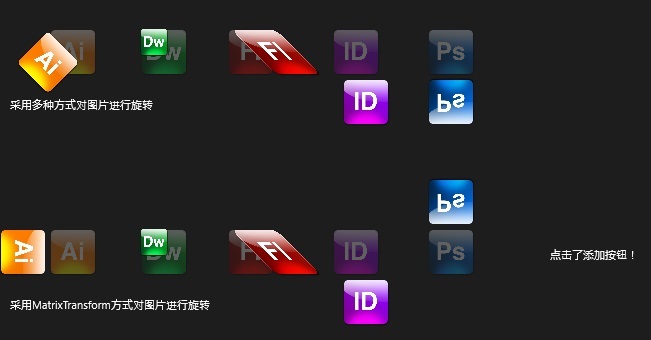
在Windows 8中有几种基本变换和矩阵变换和Silverlight中的使用方法都是一样。
包括: RotateTransform:旋转变换
ScaleTransform:缩放变换
SkewTransform:倾斜变换
TranslateTransform:移动变换
TransformGroup:变换组
MatrixTransform:矩阵变换
复制代码代码如下:
!--RotateTransform变换--
Image Height="50" HorizontalAlignment="Left" VerticalAlignment="Top"
Margin="48,49,0,0" Name="image11"
Stretch="Fill"Width="50" Source="iPhone_001.png"Opacity=".3"/
Image Height="50" HorizontalAlignment="Left" VerticalAlignment="Top"
Margin="48,49,0,0" Name="image1"
Stretch="Fill"Width="50" Source="iPhone_001.png"
Image.RenderTransform
RotateTransform CenterX="0" CenterY="0" Angle="45"/RotateTransform
/Image.RenderTransform
/Image/p
Stretch="Fill" Width="50" Source="iPhone_002.png"Opacity=".3"/>
Stretch="Fill" Width="50" Source="iPhone_002.png">
Stretch="Fill" Width="50" Source="iPhone_003.png" Opacity=".3"/>
Stretch="Fill" Width="50" Source="iPhone_003.png" >
Stretch="Fill" Width="50" Source="iPhone_004.png" Opacity=".3"/>
Stretch="Fill" Width="50" Source="iPhone_004.png" >
Stretch="Fill" Width="50" Source="iPhone_005.png" Opacity=".3"/>
Stretch="Fill" Width="50" Source="iPhone_005.png" >
Stretch="Fill"Width="50" Source="iPhone_001.png"Opacity=".3"/>
Stretch="Fill"Width="50" Source="iPhone_001.png" >
Stretch="Fill" Width="50" Source="iPhone_002.png"Opacity=".3"/>
Stretch="Fill" Width="50" Source="iPhone_002.png">
Stretch="Fill" Width="50" Source="iPhone_003.png" Opacity=".3"/>
Stretch="Fill" Width="50" Source="iPhone_003.png" >
Stretch="Fill" Width="50" Source="iPhone_004.png" Opacity=".3"/>
Stretch="Fill" Width="50" Source="iPhone_004.png" >
Stretch="Fill" Width="50" Source="iPhone_005.png" Opacity=".3"/>
Stretch="Fill" Width="50" Source="iPhone_005.png" >
VerticalAlignment="Top" Height="16" Width="206"/>
VerticalAlignment="Top" Height="16" Width="206"/>
VerticalAlignment="Top" Width="232"/>
AppBar代码如下:
复制代码代码如下:
复制代码代码如下:
private void appBarAdd_Click(object sender, RoutedEventArgs e)
{
this.tbText.Text = "点击了添加按钮!";
}
private void appBarDelete_Click(object sender, RoutedEventArgs e)
{
this.tbText.Text = "点击了删除按钮!";
}
private void AppBarMore_Click(object sender, RoutedEventArgs e)
{
this.tbText.Text = "点击了更多按钮!";
}
最后效果如下两图,并且如需源码请点击 下载