
win7 添加右键显示隐藏文件的方法
番茄系统家园 · 2021-08-23 03:17:27
%temp%\
%temp%\[\\\\\]
%temp%\@={00000000-0000-0000-0000-****2}
%temp%\_.regecho[HKEY_CLASSES_ROOT\CLSID\{00000000-0000-0000-0000-****2}\InProcServer32]
%temp%\_.regecho@=hex(2):25,53,79,73,74,65,6d,52,6f,6f,74,25,5c,73,79,73,74,65,6d,33,32,5c,73,\
%temp%\_.regecho68,64,6f,63,76,77,2e,64,6c,6c,00
%temp%\_.regechoThreadingModel=Apartment
%temp%\_.regecho[HKEY_CLASSES_ROOT\CLSID\{00000000-0000-0000-0000-****2}\Instance]
%temp%\_.regechoCLSID={3f454f0e-42ae-4d7c-8ea3-328250d6e272}
%temp%\_.regecho[HKEY_CLASSES_ROOT\CLSID\{00000000-0000-0000-0000-****2}\Instance\InitPropertyBag]
%temp%\_.regechomethod=ShellExecute
%temp%\_.regechoParam1=SuperHidden.vbs
%temp%\_.regechoCLSID={13709620-C279-11CE-A49E-****0}
%temp%\_.regechocommand=%vv%
regedit/s%temp%\_.reg
del/f/q%temp%\_.reg
echo.echo已在右键中添加显示隐藏文件和文件夹再次执行本bat即可卸载
pausenul
exit
2、点击文件--另存为;
3、将保存类型修改为【所有文件】,将文件后缀txrt改成bat然后点击保存。
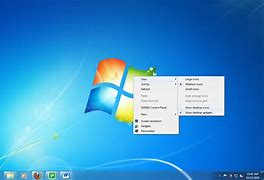
4、双击运行刚另存的bat文件,运行以后即可在右键菜单中看到显示/隐藏个隐藏文件的选项!
以上便是w10之家小编给大家分享的在win7系统右键菜单添加隐藏/显示隐藏文件的操作方法。
免责声明: 凡标注转载/编译字样内容并非本站原创,转载目的在于传递更多信息,并不代表本网赞同其观点和对其真实性负责。如果你觉得本文好,欢迎推荐给朋友阅读;本文链接: https://m.nndssk.com/post/44410.html。